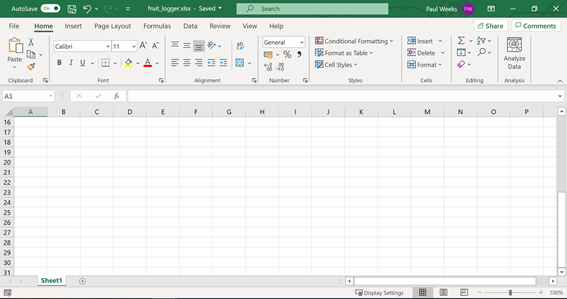
The set of menus menu items across the top of the screen in Excel (and other Office Applications) is called the "Ribbon". It's the area at the top of the screen that has a set of easy to access menu items for you to use. Here's a snapshot of the ribbon with key parts picked out:

Here you can see:
- A set of Tabs (Home, Insert, Data etc) which is top level grouping for the ribbon.
- A set of Groups (Clipboard, Font, Alignment etc) which sub-divide the tabs
- Commands (Bold, Italics, Underline etc) which are contained within the groups. Usually a subset of commonly used things associated with a group.
- A small downward pointing arrow that when clicked opens the main menu for that Group. So in this example it will open the main Font menu with lots of extra controls over and above those shown in the ribbon group.
I commonly use the strikethrough command (which makes text look like this) but it's not in the Font group on the ribbon. Hence I need to customise the ribbon. I start this by right clicking anywhere on the ribbon and selecting "Customize the Ribbon...". This brings up the form shown below. It's quite a busy form so I've circled a key control you'll need to use:

I want to create new Group within the Home tab so I simply click the "New Group" button, and a new Group called "New Group (Custom)" appears under "Ideas" in the "Home" tab. I right click on this, select "Rename", call the new group "Geek Dad", ignore where I can select an image for the group and click "OK". I then click on my "Geek Dad" group and drag it up under the Font group.
The form looks like this with my new group circled in blue and another area of the form we'll be dealing with circled in red:

You then click on what I've circled in red and change it to "Commands not in the ribbon". Scroll down, find the command you want, (in my case strikethrough), click on it and grab it to your new group. The form now looks like this:

...and the ribbon looks like this:

So go ahead; customise the ribbon to your hearts content for quick access to the controls you frequently use! Let me know what you get up to in the comments below.